

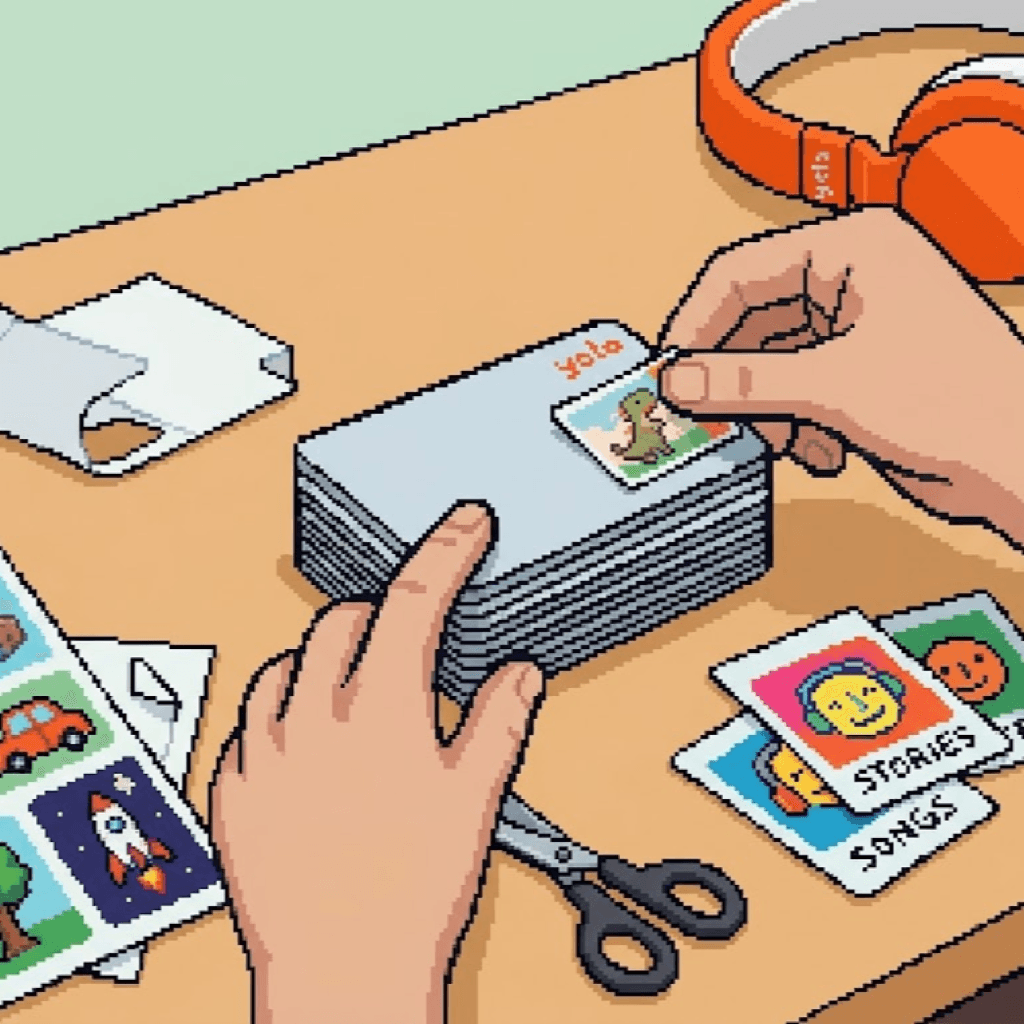
Every Make Your Own card starts life the same way: blank, white and identical to the forty other blank white cards in the drawer. Which is fine for about a week. Then someone wants the dinosaur songs, right now, and you're slotting cards in one at a time like a slot machine that only pays out Baby Shark.
Labels fix that. Getting them the right size is the fiddly bit, so here's the short answer first: a Yoto card is 54 × 85.6 mm, or 2.13 × 3.37 inches. Exactly the size of a bank card.
Everything below is the stuff that goes wrong after you know that: which label size actually fits, which Avery sheets to buy (and the one that looks right but isn't), the numbers for Canva and Cricut, and why your printer keeps making everything slightly too small.
What size is a Yoto card?
54 mm wide and 85.6 mm tall (2.13 × 3.37 in, or 2⅛ × 3⅜ if you think in fractions), with rounded corners. It's the international ID-1 size, the same as a credit card or a driving licence, so if you ever doubt a measurement, your wallet has a reference card in it.
Two things worth knowing. Make Your Own cards and the ones Yoto sells are exactly the same size, so a label that fits one fits the other. And they're portrait: the card goes into the player standing up, so design tall, not wide. (If a shop listing says 110 × 55 mm, that's the box.)
What size should Yoto MYO labels be?
Here's where the internet disagrees with itself, so let's settle it. There are three camps:
- Full size, edge to edge. Looks the most like a shop card, when it's perfect. It is never perfect. Half a millimetre out and one edge overhangs, catches on the slot, and gets picked at by small fingers until it peels.
- Print it big, then trim. Gorgeous results. Also a pair of scissors and ten careful minutes per card, which is a lovely evening activity for exactly one card.
- A little smaller: about 50 × 82 mm. This is our camp, and Yoto's own community's. A thin frame of card shows all the way round, which hides a slightly wonky placement, and there's no edge for anyone to start picking.
That last one looks like this:



Whichever camp you're in, keep the writing a couple of millimetres in from the edge of the label, where thumbs won't rub it off.
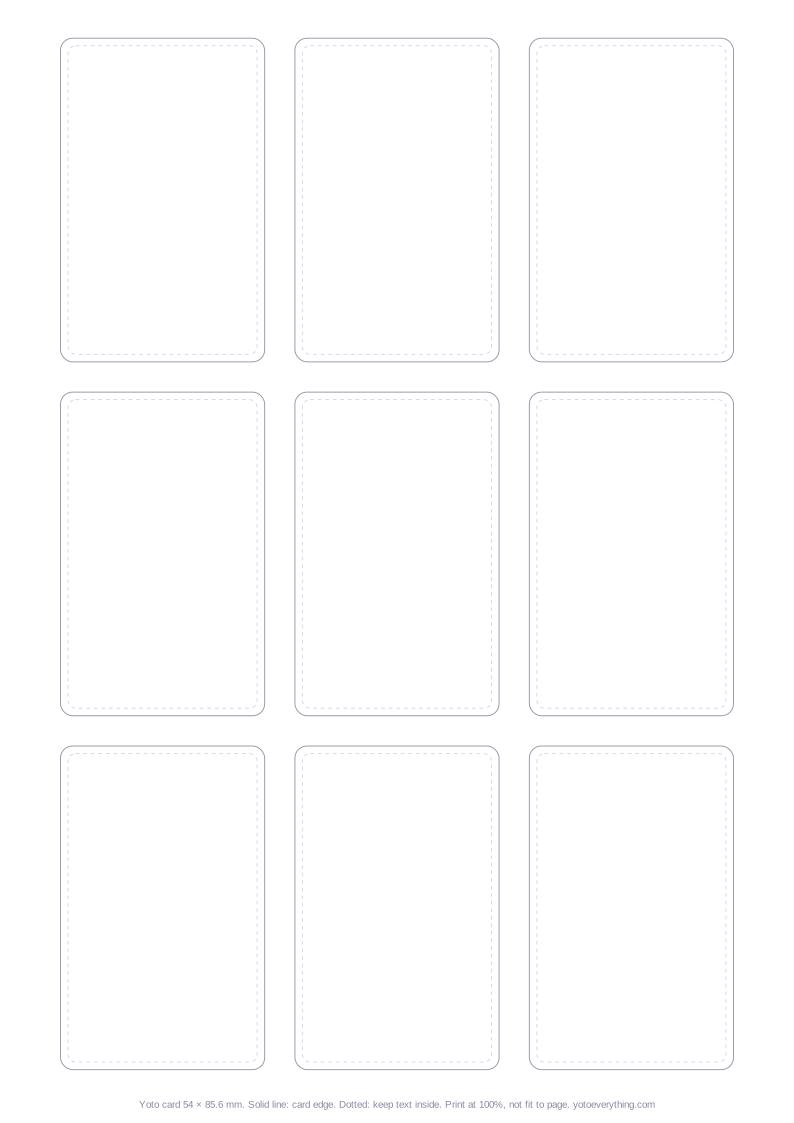
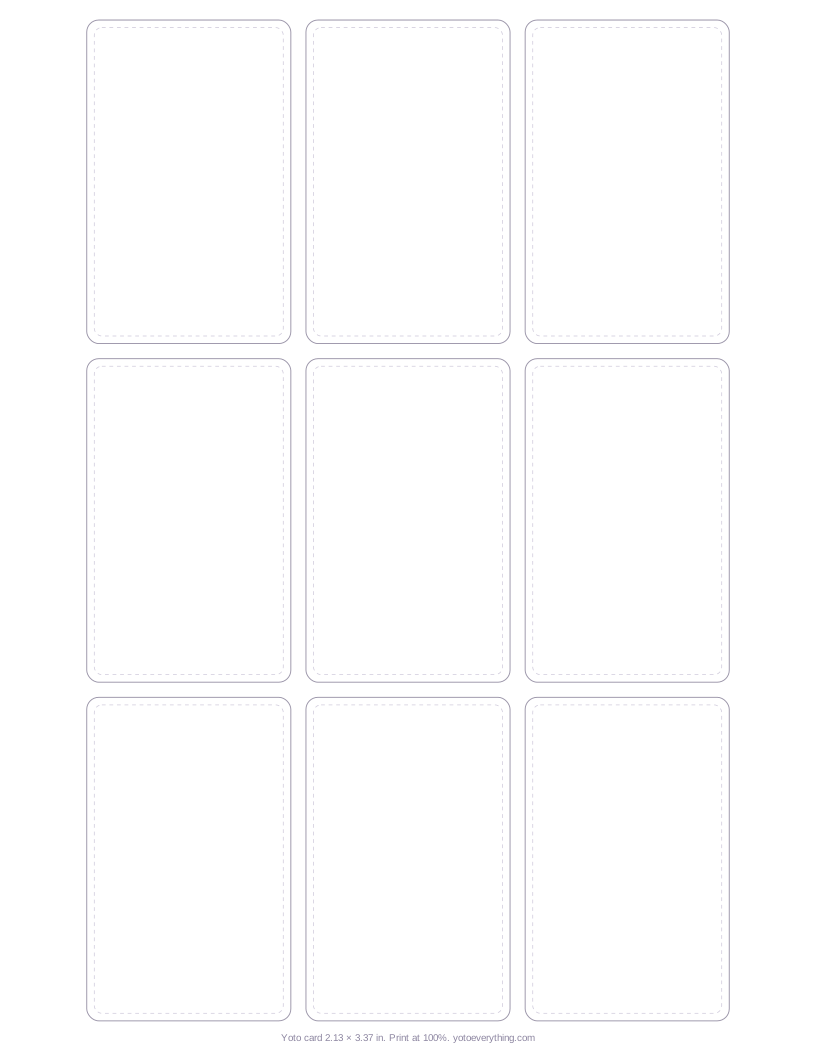
Free printable Yoto label template
Nine true-size cards per page, A4 or US Letter. The solid line is the edge of the card, the dotted line is the 2 mm-smaller label. Stay inside the dotted line and it's very hard to go wrong.
Avery labels that fit Yoto cards
Pre-cut labels are the lazy option, and I mean that as the highest compliment. The catch is that the sizes sound almost identical and only one of them fits:
- 2 × 3 inch (Avery template 94237): fits. A neat border all round. This is the one most US guides use.
- 2 × 3.5 inch (94238): doesn't. 3.5 inches is 89 mm, which is longer than the card. They sit next to each other on the shelf, which is exactly how people end up with a pack of each.
- 80 × 50 mm: the best fit of all. The size Yoto's own community recommends, and easier to find in the UK.
Avery's free Design & Print tool has a template for each, so you can fill a sheet and print right to the edges.
Making Yoto labels in Canva
Canva is how most of us end up doing this, and it's great, as long as you start with the right size. Create a design with custom size, switch the units, and use:
- 54 × 85.6 mm (2.125 × 3.375 in) for the whole card,
- 50 × 82 mm for a label with a border,
- or in pixels at 300 DPI: 638 × 1011 for the card, 591 × 969 for the smaller label.
The trap: don't download one label and print it on its own. Your printer will cheerfully “fit” it to the page. Lay copies of it on an A4 or Letter page instead (our template makes a good guide) and download that as PDF Print.
Cricut Print Then Cut
If you own a Cricut, this is its moment. It cuts every label to shape, rounded corners and all, while you make a cup of tea:
- Upload your design, lock the proportions, and set it to 50 × 82 mm.
- Put a rounded rectangle the same size behind it and combine the two, so the cut line gets the card's corners.
- Choose Print Then Cut, print onto printable vinyl, pop it on the mat and let the machine find its marks.
Do a test on plain paper first and hold it against a real card. The machine is precise. It's the number you typed in that usually isn't.
Why your Yoto labels print too small
You measured everything. The template is perfect. And the labels come out of the printer just slightly, infuriatingly small.
It's the printer being helpful. Most print dialogs quietly default to “fit to page” or “shrink to fit”, which scales everything down a few percent to clear the margins. A few percent is all it takes.
- Set the scale to 100%, or actual size.
- Print on plain paper first and measure the outline with a ruler. It should be 54 mm across.
- Hold a real card behind it against a window. Corners line up? Now load the sticker paper.
Sticker sheets cost enough that the plain-paper test is the best thirty seconds of the whole job.
The best sticker paper for Yoto cards
These cards live a hard life: pockets, car seats, the occasional mouth. The paper matters more than you'd think.
- Matte vinyl is the one to get. It survives sticky hands, doesn't glare, and takes a fine permanent marker if you want to write the name on.
- Glossy looks brightest on day one and shows every fingerprint by day three. Marker smears on it.
- Plain paper labels are fine for a first try, but the corners fray within weeks.
- Match the paper to the printer. Sheets are made for inkjet or laser, and the wrong one smudges or won't take the ink. It's on the packet, in small print.
The chip reads straight through a paper or vinyl label, so don't worry about that. Worry about thickness instead: a laminate layer, or a new label stuck over an old one, can make the card sit badly in the slot. Peel the old one first. And however much a certain someone wants glitter, keep glitter, felt and glued-on bits off the cards. They have a way of ending up inside the player.
Or skip the printer entirely
We tested marker, washi tape and printable sheets, and wrote up which labels last and which rub off. And if you'd rather not print anything, our Yoto card label sets come cut to size already, with a space on each to write what's on the card. The three above are from them.
Quick answers
- What size is a Yoto card?
- 54 × 85.6 mm, or 2.13 × 3.37 inches: the same size as a bank card (ID-1). Make Your Own cards and the cards Yoto sells are the same size.
- What size should Yoto MYO labels be?
- About 50 × 82 mm, roughly 2 mm smaller than the card on every side. A label the full size of the card is hard to place exactly, and an overhanging edge catches on the slot and lifts.
- Which Avery labels fit Yoto cards?
- 2 × 3 inch labels (Avery template 94237) fit, leaving a border. 2 × 3.5 inch labels (94238) are too long for the card. 80 × 50 mm rectangle labels are a near-perfect fit.
- What size is a Yoto card in Canva?
- Set a custom size of 54 × 85.6 mm. In pixels at 300 DPI that is 638 × 1011, or 591 × 969 for a label 2 mm smaller on each side.
- Is there a free Yoto label template?
- Yes. Our A4 and US Letter templates have nine true-size card outlines per page, as PDF and SVG, with a dotted line marking a label 2 mm in from the edge. Print at 100%.
- Why do my Yoto labels print too small?
- The print dialog is scaling the page to fit the margins. Set the scale to 100% or actual size, and check the outline measures 54 mm across on plain paper before using sticker sheets.
- Will a sticker stop a Yoto card working?
- No. The chip reads through a paper or vinyl label. A thick label, or one stuck over an old one, can make the card sit badly in the slot.