
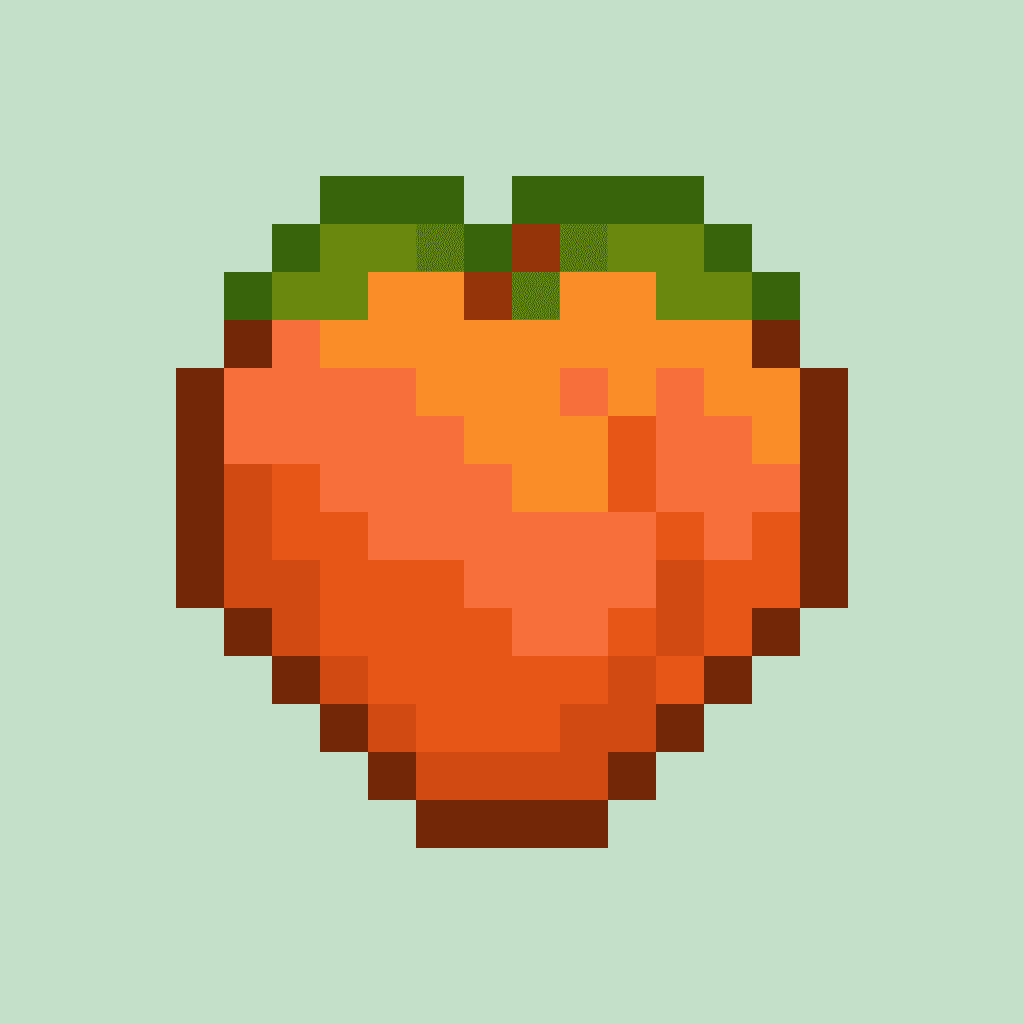
Make Your Own cards turn up blank, and the icon is the only thing telling a three-year-old which one is the dinosaur card. Yoto gives you a library of stock icons, and it's decent, but the moment you make a card for a specific audiobook or a bedtime playlist or Granny reading a story, you want something that isn't in it.
There are three ways to get one. Draw it, download it, or have something generate it. Here's what each is really like, including how long it takes.
What is Yoto pixel art?
Yoto icons and Yoto pixel art are the same thing, and which phrase you use mostly depends on where you first came across it. The player's screen is a grid of 16 lights across and 16 down, so an icon is 256 coloured squares and nothing more. There is no room for detail, which is why a photo shrunk down turns to mud and a deliberately drawn 16×16 square reads clearly from across a room.
The file is a PNG with a transparent background, exactly 16 by 16. An icon can also be a GIF, in which case it moves - animated icons work on the same grid, just with several frames. Everything below applies to both.
Draw it yourself
This sounds like the hard option and it's the one people are most surprised by. A Yoto icon is 16 squares across and 16 down. You're not drawing, you're colouring in 256 squares. If you can do a cross-stitch pattern you can do this.
Free tools that run in your browser, no download, no account needed:
- Piskel is the friendliest place to start, and it does animation too if you catch the bug later.
- Pixilart has a big public gallery, which is useful when you want to see how someone else solved “how do I draw a hedgehog in 16 pixels”.
- Lospec Pixel Editor is stripped back and quick.
If you end up making a lot of these, Aseprite is the paid tool most pixel artists use. Skip it until you know you're hooked.
Whichever you pick, set the canvas to 16 by 16 before you start. Drawing big and shrinking it afterwards is the single most common way this goes wrong, and we've written about why.
Three things that make a tiny picture readable
Get the shape right before you worry about colour. If you filled it all in black, would you still know what it was? If not, colour won't save it.
Zoom in on your subject. A fox's face works at this size. A whole fox standing in a meadow doesn't. Anything with a face should mostly be face.
Use fewer colours than feels right. Three or four. It looks stark while you're working at 800% zoom and it looks crisp on the actual card.
Download one someone else made
Fastest route by a distance, and there are two places to look.
Ours is our library of free Yoto icons: a few hundred icons, every one drawn at 16×16 rather than shrunk down to it, which is the difference between an icon that reads across a room and one that looks like a smudge. Sorted the way you would expect - animals, vehicles, food, emoji, letters and numbers. There are animated ones too. No account, no sign-up, nothing to accept: click download, and it is on a card a minute later.
Then there is yotoicons.com, a community project that has been going for years. Tens of thousands of icons, uploaded and tagged by the people who made them, and free. Nothing we have comes close on sheer number, so if you want a specific dinosaur from a specific programme, that is where it will be.
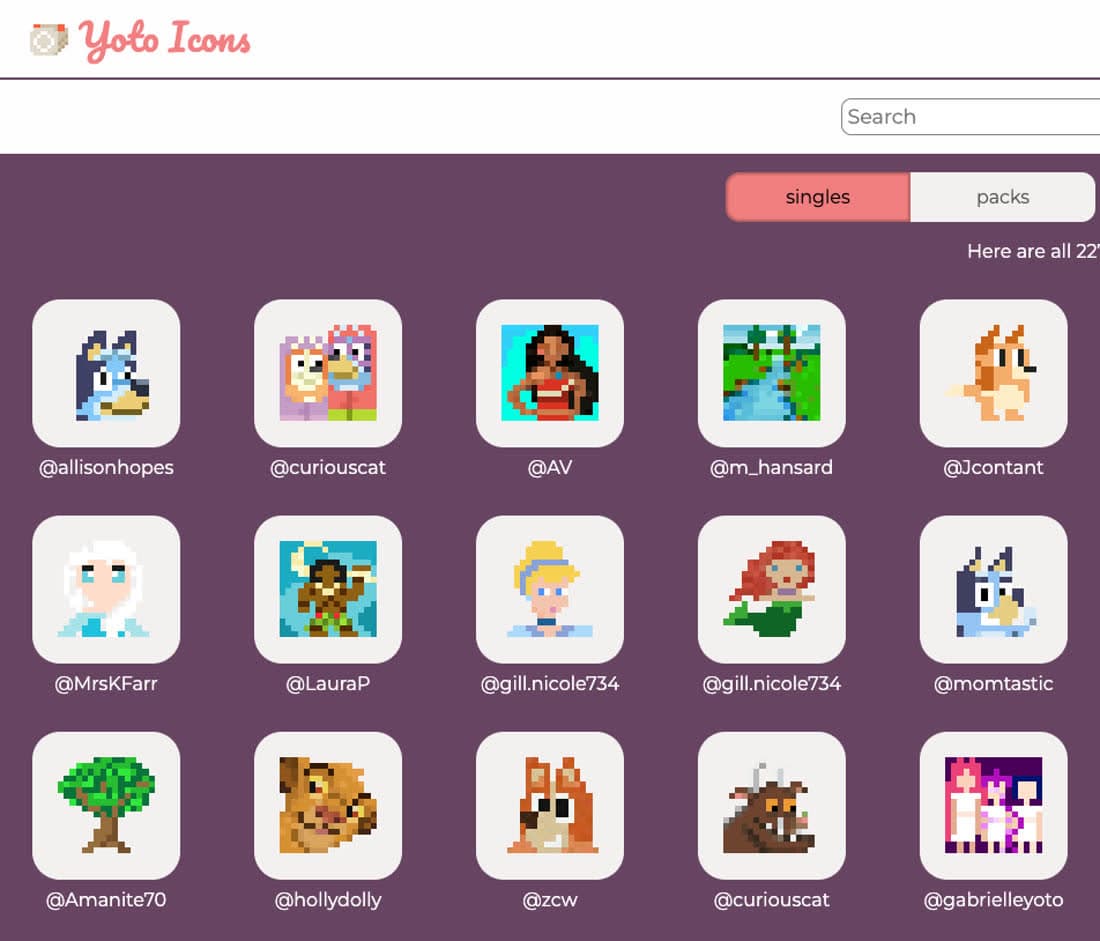
Two things worth knowing before you go looking:
The quality is all over the place, because anyone can upload. Some are beautifully made. Others are photos that have been shrunk down, which look muddy on the player. Always look at the little preview rather than the big version - the big version flatters everything.
And a lot of them are characters from TV shows and films. Absolutely fine for a card in your own house. Worth thinking about if you are making something to sell.
Generate one with a Yoto icon maker
The newest option, and the one where results vary most. Search for a Yoto icon maker or a Yoto icon generator and you will find plenty, but a lot of them go about it backwards.
The backwards way is to make a normal picture and then shrink it. That blends everything together and you get the brown smudge we all know and love. If a tool asks you to upload a photo and promises an icon, that is usually what it is doing.
The way that works is to have the thing draw at 16 by 16 from the start, so every square is a decision rather than an average. That's what we're building here, and it's why the icons on the front page have crisp edges instead of soft ones.
The other half is knowing what to draw in the first place. Ask for “bedtime stories” and there's no such object. Someone has to decide it should be an open book with a moon over it. That decision matters more than the drawing does, and it's the bit most tools skip.
Getting it onto the card
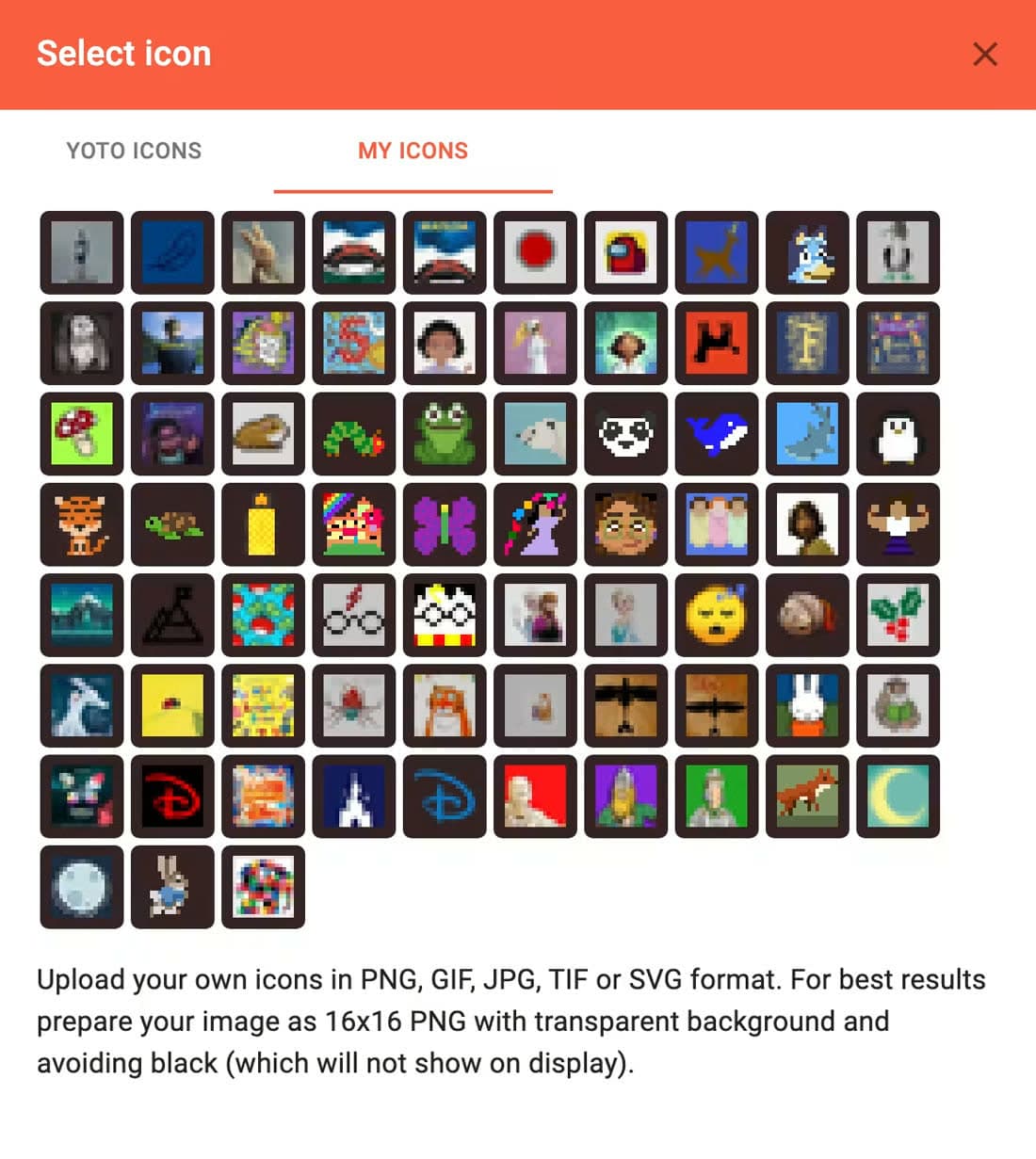
Open your Make Your Own card in the Yoto app or the web editor, tap the track you want to change, and choose to upload your own icon. Pick your file, save, and give the card a moment to sync. The player picks it up next time it's online.
If you're uploading an animation rather than a still picture, there's one setting that will quietly flatten it back to a single frame. That one's covered in the animated icons post.
Four mistakes that cost people an evening
Drawing big and shrinking. Start small. This is the big one.
Leaving the background white. Looks fine on your laptop, shows up as a glowing white square on the player. Save it with transparency.
Outlining in black. The player can't tell pure black from a switched-off pixel, so black outlines just disappear. Use very dark grey, or a darker shade of the colour beside it.
Adding detail to fix it. When something isn't reading properly the instinct is to add more. At this size, taking things away almost always works better.
Quick answers
- What is Yoto pixel art?
- The same thing as a Yoto icon. The player's screen is 16 lights across and 16 down, so an icon is 256 coloured squares - pixel art by definition. Saved as a 16x16 PNG with a transparent background, or a GIF if you want it to move.
- How do I make a custom Yoto icon?
- Three routes: draw it in a free pixel editor such as Piskel at a 16x16 canvas, download one from a community library, or generate one. Whichever you choose, the file must end up a 16x16 PNG with a transparent background.
- Can I upload my own icons to a Yoto card?
- Yes. Open the Make Your Own card in the Yoto app or web editor, select a track, and choose to upload your own icon. The player picks up the change once it next has network.
- Is there a Yoto icon maker?
- Several. Any pixel editor set to a 16x16 canvas works, Piskel being the easiest free one. Generators exist too, but many shrink a normal picture down, which blurs it. Look for one that draws at 16x16 from the start.